 EVoLabelsHelp
Getting started
After you create an account and confirm your email, EVoLabels walks you through a short setup. The header shows where you are ("Step 3 of 9"); Back returns to the previous step without losing what you entered. Everything you choose here can be changed later in Settings. The step numbers appear once you have chosen your role.
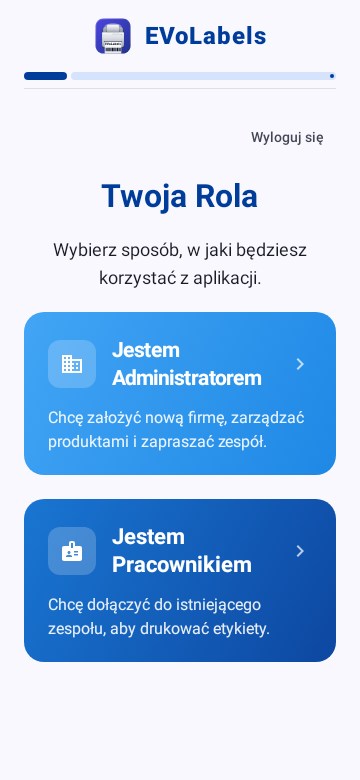
1. Your role
| Choose | When |
|---|---|
| I am an Administrator | You set up the company: products, product types, printers and the team. |
| I am an Employee | Someone already uses EVoLabels and invited you to print labels. |
If an invitation to a team is waiting for your email and you choose I am an Administrator, the app asks whether you'd rather join that team. If an invitation is already waiting, a card at the top joins that team in one tap.
Employees continue with Joining a team.
2. Label usage
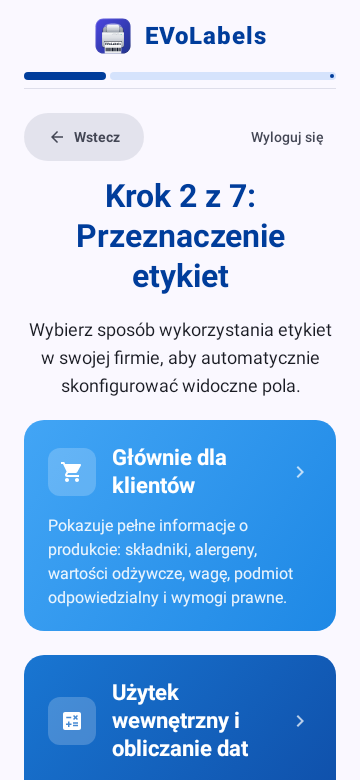
Choose what your labels are for. This decides which fields the product form shows and what the label carries.
| Option | Labels | Typical use |
|---|---|---|
| Mainly for Customers | Customer-facing: ingredients, allergens, nutrition facts, weight, business operator and the legal fields of your markets. | Products sold or served to customers. |
| Internal Use & Date Calculation | Internal: product, dates (opened on, use by), lot, prepared by and the journal QR. No ingredient or nutrition data. | Kitchens and stores tracking shelf life. |
| Both | Every product type has a customer-facing and an internal label; the internal one is filled in for you. | Shops that sell and prepare food. |
| Custom Configuration | You switch fields and legal requirements on yourself. | Special cases. |
Change it later in Settings → Labels & data → Label usage. In a team, this needs the Label types permission. The choice is a list of three options, Internal only, Customer-facing and Both, each with a one-line description; tap one to apply it. The product form follows the change as it does here: switching to internal labels only hides the customer-facing fields, switching back to customer-facing (or both) shows them again; between customer-facing and both, the fields you switched on or off yourself stay as they are.
For internal labels only, Markets & languages in Settings is called Label language: it keeps the label languages, the form fields, custom fields and label names, and hides target markets, household measures and the ingredient catalog. I also print labels for customers (ingredients, allergens, nutrition) there switches to both label types.
With internal labels only, labels carry no legal elements, so your target markets' labelling rules don't apply: the product form doesn't ask for market-specific details (such as India's FSSAI licence or front-of-pack inputs), doesn't warn that a hidden field is required in your markets, asks for the product name only in your label languages and lists hidden data meant for customer labels apart from the data that still prints.
Custom Configuration shows the label usage above the list of fields: choose customer-facing, internal or both there, then switch single fields on or off. With internal labels only, the LOT stays in the product form, as the internal label prints it.
3. Markets and languages
- No, single language: labels are printed in your language and follow the rules of your country. With one market and one language there is nothing to switch, so the market/language selector isn't shown anywhere. The card names the market and label language proposed from your device's region (for example Germany and German); Change lets you pick another market first.
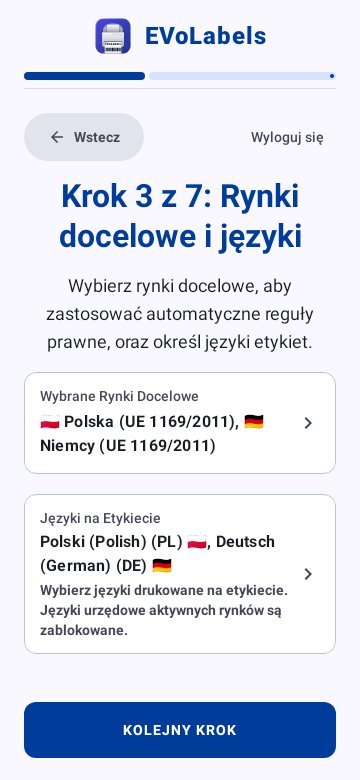
- Yes, multiple languages: choose your target markets (the countries you sell in; their allergen and labelling rules are applied automatically) and the label languages. Product names and label wording then get a translation per language. The language list starts with Required by law: the languages your markets require, which stay switched on (e.g. Finnish and Swedish for Finland). Where the law accepts any one of several languages, they are grouped with the market's flag, and one of them is enough. This applies in Switzerland (German, French or Italian), Luxembourg, Malta, India, the Philippines and Hong Kong.
- Your responsibility: EVoLabels applies each market's labelling rules and suggests translations, but you are responsible for the label. Check that its content, translations and allergens are correct and meet the law where you sell; the app is not legal advice. The label preview shows this note under the print button. For internal labels, the note only asks you to check the dates and content.
- Every name translated: when you save a product, the app checks that the product name and each of the product's own ingredients have a translation in every label language. Missing ones are suggested automatically (machine translation) in one dialog; check or correct them, then save. "Save without translations" prints the name as you typed it in those languages. Ingredients that come from the product type are translated in the product type.
4. Device authorization (only when needed)
Each plan prints on a set number of devices. This step appears only when your plan's devices are all in use: confirm to use this device for printing, or continue and decide later in Settings → Devices.
When a plan has a free seat, this device is registered on its own. While the server saves it, you see "Saving the device…"; the device counts as registered only after the server confirms it. If that fails (no connection, or a licence bought a moment ago that has not reached the server yet - the app checks again a few times first), you see why and can try again here or in Settings → Devices. The same applies when an owner approves, renames or removes a device.
5. Product database
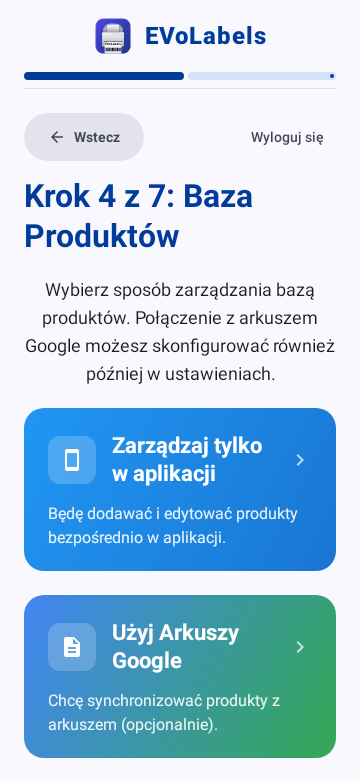
- Manage in the app only: you add and edit products in EVoLabels.
- Use Google Sheets: keep your products in a spreadsheet and sync it with the app. You can create a new spreadsheet or link an existing one. When the spreadsheet already holds your product types and products, the next two steps are skipped.
- Accept products invitation: shown when another business shared its products with you.
You can connect Google Sheets later in Settings.
With internal labels only, this step is skipped, unless another business shared its products with you.
6. Your first product type
A product type groups similar products (for example Pastries); its products take over its settings. The step has four short pages:
- Name and shelf life: the product type's name and how long its products keep.
- What goes on the label: prefilled from your label usage; switch on what your labels need. Show more fields reveals the less common ones.
- Extra fields (optional): your own text fields, QR codes or barcodes.
- Layout: how the label is arranged. The layout you choose becomes your organisation's label, so the next product types start from the same look. Fine-tune it later in the product type editor.
With internal labels only, the step is a single page: the name and shelf life, LOT Required and Print who prepared it. The label is your organisation's internal label, so there are no extra fields or layout to choose; change it later in the product type editor.
7. Your products
Type the products of the new product type, one per line, and tap Next. You can add more, with all their details, later. Skip leaves this for later. They are marked as favourites, so the print screen shows them first.
8. Plans
Your labels are ready: the step shows previews of your products. Printing needs a plan; choose one by the number of devices that will print:
| Plan | Devices |
|---|---|
| Solo | 1 |
| Duo | 2 |
| Trio | 3 |
| Team | 5 |
| Business 10 / 25 / 50 | 10 / 25 / 50 |
| Enterprise | agreed individually |
Choose Monthly or Yearly (yearly saves months of payments) and the number of devices; the plan screen is explained in Choosing a plan. Continue for free finishes the setup without a plan; you can subscribe any time in Settings → Subscription. Accounts that already have a plan skip this step.
9. Printer
Turn on your label printer: the app looks for it as soon as the step opens. Connect it over Bluetooth or USB, or choose a regular printer. A recognised printer's settings are saved as soon as it connects; check the label size and tap Continue. Skip at the bottom leaves it for later: connect it in Settings → Printing → Printer & label paper. Accounts without a plan don't see this step.
Joining a team
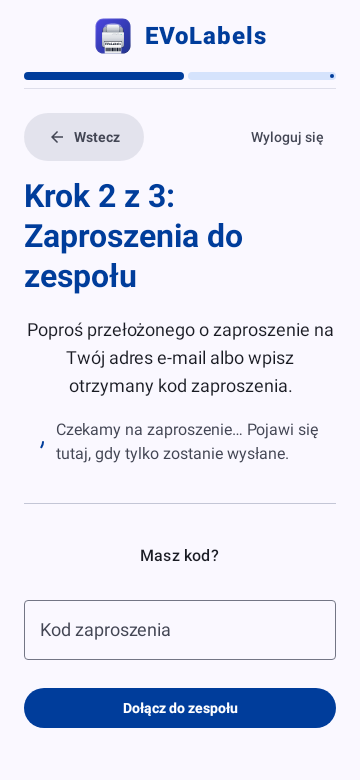
- Choose I am an Employee.
- Invitations sent to your email appear in Team Invitations; accept yours. You can also enter the invitation code from the email.
- Connect the printer (step 9).
Your administrator decides what you may do (print, edit products, manage the journal, …) and on which workstations.
Labels on the pack
A small label may not fit everything the law requires. In a product type's Layout tab, under Labels on the pack, add more labels (e.g. a back label with ingredients and nutrition) with Add a label. The law check covers all labels of the pack together. When you print, you can look at each label, and Print sends all of them.
Light or dark
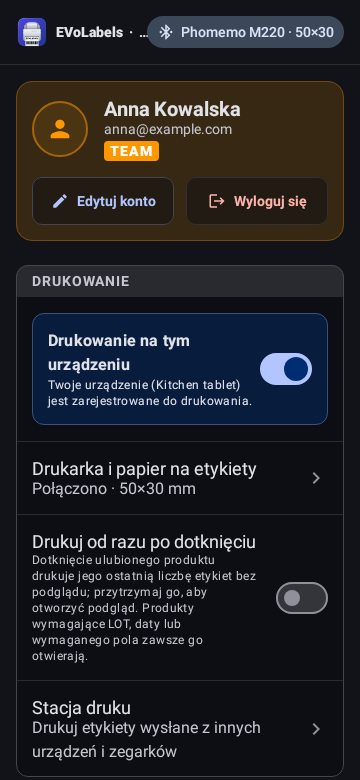
Settings -> App -> Theme: System (follows the device), Light or Dark. The choice is stored on this device. Label previews stay black on white, as printed.
On a laptop or with a keyboard
EVoLabels works on Android laptops (Googlebook, Chromebook), tablets and iPads with a keyboard, the Mac app and the web app. Make the window any size - side by side with another app, too: the lists and forms rearrange and what you typed stays.
| Keys | What they do |
|---|---|
| Ctrl+P (⌘P on a Mac or iPad) or Enter | On the print screen and in order mode: print, like the print button |
| Ctrl+F (⌘F) | Jump to the search field of a list (products, journal, history, ingredients, label names) |
| Ctrl+N (⌘N) | New: what the list's + button does (a product, a product type, a layout...) |
| Ctrl+A (⌘A) | In products, product types and the journal: select every item shown |
| Ctrl+Shift+N (⇧⌘N) | In the layout editor and a product type's label editor: open it in a window of its own |
| Ctrl+1 to Ctrl+4, Ctrl+, | Fast Printing, Products, Journal, History, Settings |
| Esc | Back (closes an open window or dialog first, ends a selection) |
| Tab / Shift+Tab | Move between buttons and fields |
| Right-click | On products, product types and journal entries: select, as a long press does |
| Ctrl+click (⌘+click) | Add an item to the selection, or take it out |
| Shift+click | Select every item from the one you clicked last to this one |
The Mac app has these commands in its menu bar (File, Edit, View, Window, Help); a command is greyed out where the screen has nothing for it. On Android, Search + / (or Meta + /) lists them; on an iPad, hold ⌘. Enter on a focused button presses that button. In the web app only Ctrl+P and Ctrl+F are the app's: they print and search where the screen has them, elsewhere the browser's own keys work as usual. Not on iPhone.
Drag and drop (Android, the Mac app, the web app): drop a spreadsheet with product names (CSV or Excel .xlsx) onto the app and Quickly add products opens with those names, in the product type you have open or your default one - check them, then add. The column headed "Name" or "Product name" is used, otherwise the first column with words. Drop an image to add it to the label Images.
More windows (Android tablets and laptops, the Mac app, the web app): Open in new window in the layout editor or a product type's label editor moves the editor to a window of its own (a new tab on the web), so the list stays next to it. Save your changes first. Each window goes back on its own; what you save shows in all of them.