 EVoLabelsHelp
Product types, layouts and bindings
A printed label is made of three parts that you can change separately:
| Part | What it is | Example |
|---|---|---|
| Product type | A kind of product: which data its products have and which rules apply (in the Google Sheet and in older versions: a template) | "Bakery": expiry date required, lot number, ingredients |
| Layout | The shape of the label: boxes for text, a barcode or a QR code | two text rows with a barcode at the bottom |
| Binding | Which data goes into which box of the layout | name and allergens in the top row, expiry date and lot below |
Products belong to a product type and print with its layout and binding.
Product types
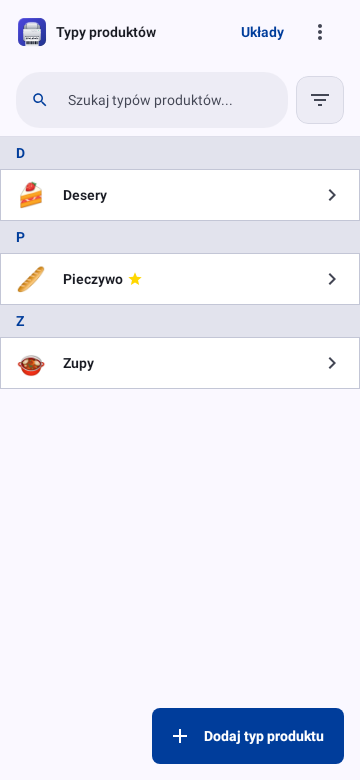
Settings → Labels & data → Product types lists your product types. The default type (marked) is used for new products. Open a product type to see its products; Add product there adds a product of that type - its name, shelf life and favorite (Quickly add products, for many names at once, is under More). Edit opens the type itself; it has three tabs. On a wide screen (a computer, or a tablet held sideways) the three tabs are shown side by side as columns, each scrolling on its own; the label preview heads the third column, above the label type and the layout.
A new product type can start from a ready one: delivery / to-go, grab-and-go, catering or a tamper-evident seal. It fills in the shelf life, the data the products need and a label with just those fields; change anything afterwards. Kitchen: use-by is for food prepared in the kitchen: name, prepared on, use by (3 days to start with), prepared by and an optional lot on an internal label, no ingredients - it comes first when you print internal labels only.
Product data
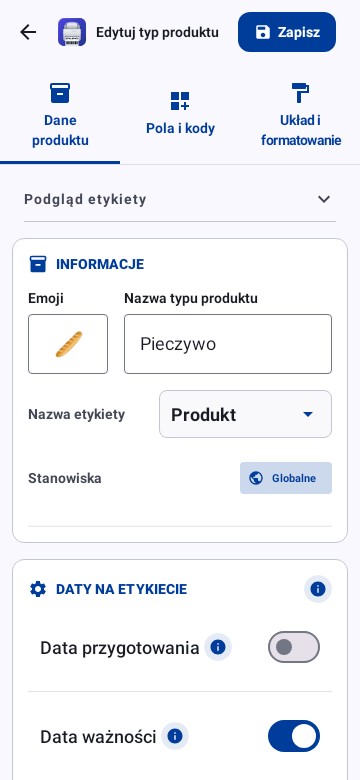
Name and emoji (the name is a kind of product, e.g. Cakes), Product differences and which data its products must have (start date, expiry date, processing time, lot, manufacturer's expiry, net quantity, ingredients, nutrition, business operator, country of origin). Fields switched off in Settings → Labels & data → Markets & languages → Form Field Visibility (any field of the form, down to each recipe fact) stay hidden, even when they hold data: the end of the form lists those (their data still prints) and warns, in one red line, about the ones a target market requires and how many markets that is (not when you print internal labels only - they follow no market's rules); (i) lists the markets by name for each field. Show hidden fields brings them back.
Product differences is under Advanced at the end of the tab, closed - it opens by itself when the product type isn't rigid (the default):
- Rigid product types mark the values a product changed and let you reset them to the type's.
- Flexible product types let products change values freely, without marking or resetting.
Fields and codes
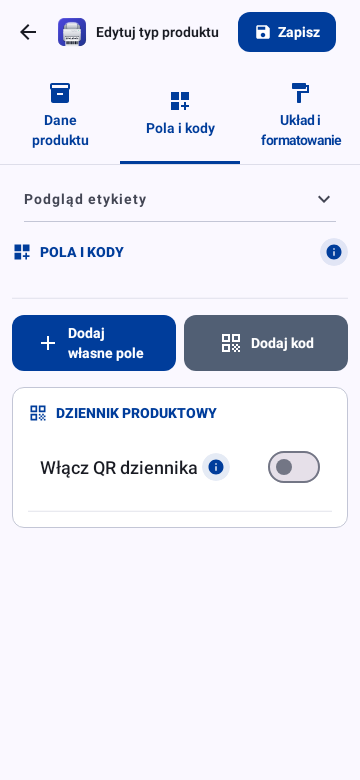
Add custom field adds your own data (for example storage temperature or the supplier) - typed in per product or fixed for the product type. Add code adds a barcode or QR code. When you use both customer and internal labels, each field says which label it may appear on.
Layout and formatting
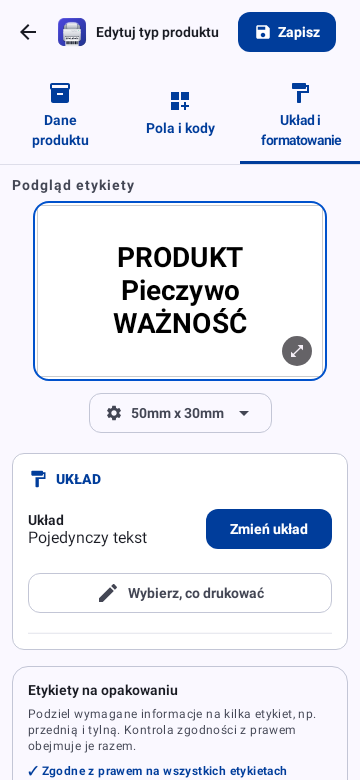
Shows the label preview first - compact and upright, as in the product form - then the layout. Change layout picks another layout and opens it in the binding editor with the label's fields moved into it; Choose what prints opens the binding editor. Unsaved changes to the product type are saved first, so you go straight on. With both label types (see below) a switch at the top chooses which label you edit. You can also fix the product type's paper size here. Create new layout in the list opens the layout builder for this label: once you save the new layout, the label uses it - Next: choose what prints opens the label's binding, Done goes back to the product type. The label's fields are spread over the new layout's text boxes, one group per box in the order of a label: name and net quantity, ingredients and allergens, dates, business operator, nutrition, your own fields; the last box takes the groups left over. Extra boxes split the biggest groups; the name and net quantity always stay together. Codes go into code boxes, image boxes stay as they are.
Internal labels only: when your organisation prints internal labels only, the tab shows just Choose what prints and the paper size - no label type switch and no layout choice. A product type that uses the organisation's label opens that label, and the change applies to every product type using it. The label type switch shows only when you print both label types. A product type with a label of its own shows Restore the organisation's label while your organisation has one: once you confirm, the type prints the organisation's shared label again and its own label settings are removed.
Labels on the pack: when everything required doesn't fit on one label, add a second label (for example a back label with ingredients and nutrition). Printing sends all the labels, and the law check covers them together: it says whether every required item is on one of them. The labels are numbered (Label 1, Label 2...) - together they are the product's label - and each one is previewed. The organisation's label can be a set too: add its other labels on the Layouts screen; every type that uses the organisation's label prints the whole set. Add a label asks for the layout of the new label; with Create new layout the label is added with the new layout once you save it, its content spread over the boxes as above.
One preview for the whole set: the label preview shows the labels of the set one at a time. Switch with the Label 1 · Label 2 tabs above it, the arrows, a swipe on the label or the ←/→ keys, or tap a label in the list; the full-size preview switches the same way. The paper size applies to all labels of the set. Switching only changes what you see - printing always sends every label.
Layouts
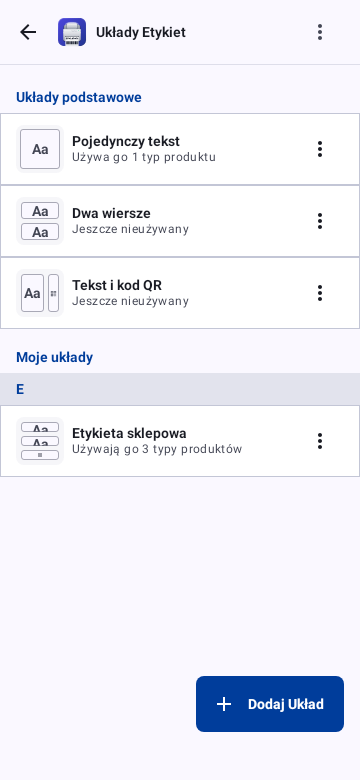
Layouts lists the built-in layouts (one text block, two rows, two columns, a 2 x 2 grid, with a barcode or a QR code, a price layout and more) and your own. Built-in layouts can't be changed; create your own layout when none fits, or copy one (built-in or your own) and change the copy - a copy is a new layout, so every box in it can be split and change its type. Each row says how many product types use the layout. Its ⋮ menu (or a swipe to the left) has Make a copy, Rename and Delete; a layout that product types use can't be deleted. Add layout and Make a copy open the builder straight away, with a name you can change in its title.
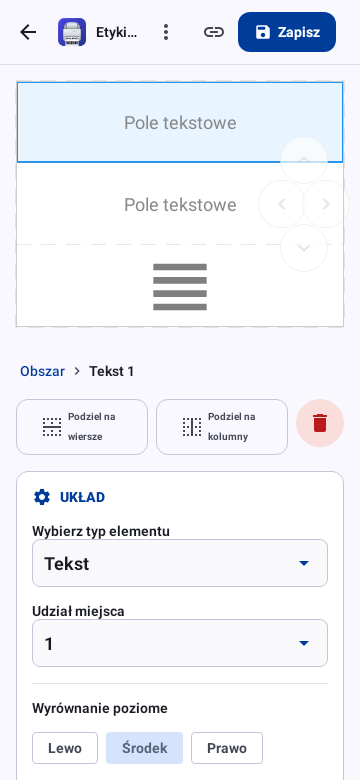
A new layout starts with one text box, drawn in the proportions of this device's label paper. Select a box and Split into rows or Split into columns; an empty box offers the same and Add text, a QR code, a barcode or an image (point at a button or hold it to see its name). Boxes go two levels deep - the builder says so when a box can't be split further. A box's type, size share, alignment and font size come first; margins, borders, corners, colours, background and the finer text and code settings are under More formatting. Splitting a box keeps its content (text, barcode, QR code or image) in the first half; the other half is a new text box. While product types use a layout, its boxes keep their type and none can be added or removed - make a copy to change its shape. After you save a new layout, Next: choose what prints opens its binding and Done goes back. A layout holds no data; the same layout can serve many product types with different bindings.
With Auto-resize on (the default), a box's text shrinks until it fits the box and every word fits on its line: a word or a date such as 11.10.2026 is never broken in the middle, and a number stays on the same line as its unit (80 g), while a smaller size is still allowed. Only at the box's minimum font size may a word that still doesn't fit be broken. With a fixed font size the text keeps its size. The preview shows exactly what prints.
Boxes can have colours: under Color in a box's formatting, choose the colour of its text and lines and a light background colour, or any colour under Custom color (colour wheel, brightness or a hex code). Regular printers print the colours; label printers print text and lines black and coloured backgrounds as a light dot pattern, so the same layout works on both. Two-colour label printers (Brother QL-800 series with DK-22251 tape) also print red. With Invert colors the box takes the text colour and its text turns white. Barcodes and QR codes always print black; images print in colour only on a regular printer. The print preview shows the label as your printer will print it.
Images
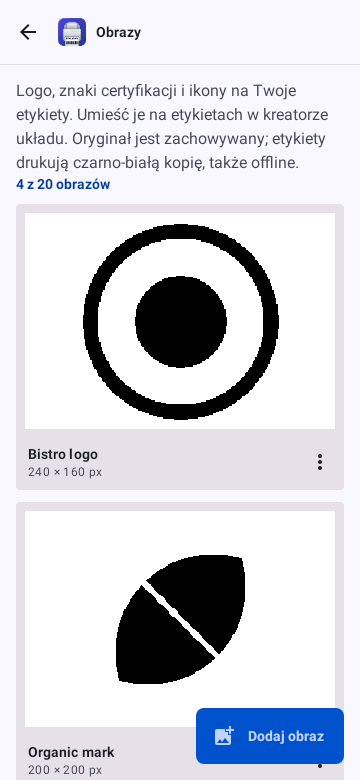
Labels can show your logo, certification marks or icons. In Layouts, open the menu and choose Images, then Add image and pick a file (PNG, JPEG, GIF, WebP or BMP, up to 10 MB). Choose how it prints: Sharp for logos and marks (clean black and white) or Shaded for photos and gradients (tones as fine dots) - the preview shows what the printer prints. An organisation can keep 20 images. The original file is kept; labels print the black-and-white copy, also without internet.
To place an image, give a box the type Image in the layout builder (or use the image button of an empty box) and choose the image. A new image box shows your image straight away when you have only one, or the one you have just added under Images. The image belongs to the layout: it is the same on every label that uses the layout and needs no binding. Deleting an image leaves its boxes empty.
An image can also be the background of any box - a single text or code box, a box split into several, or the whole label. Select the box and, under Background image, choose the image and how it fills the box: Fill covers the whole box (the parts that stick out are cut off evenly) and Fit shows the whole image in the middle of the box. The box's text, codes and inner boxes print on top of it, so choose a light or Shaded image - text and codes over dark areas may not be readable or scan. When you split a box, its background stays under both halves. Remove background takes it away; deleting the image leaves the box plain.
Bindings
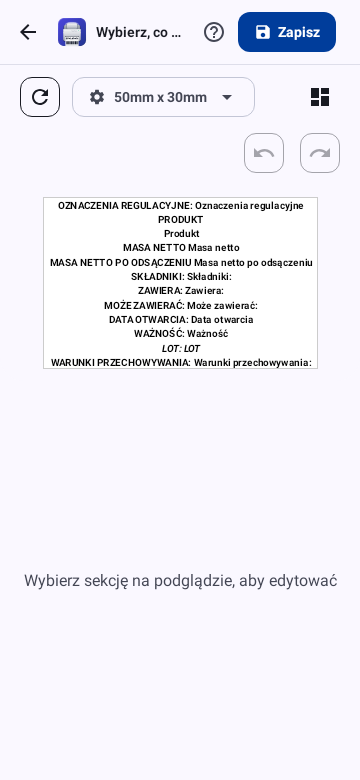
The binding editor (Choose what prints) shows the label with one of the product type's products in it - the one printed last, or the first. Tap a box and choose which fields go in it and in what order, with their caption, separator and style. Put codes into empty code boxes places the product type's barcodes and QR codes that aren't on the label yet into empty code boxes; it doesn't move any other field. An empty barcode box offers Add a barcode to this product type (each product then gets its own code in its form) or the lot number as a barcode. Change layout here moves the label's fields into another layout at once; Undo in the message brings the old layout back. Reset fields? puts back the layout's default fields or removes them all.
The fields are grouped (product, dates and lot, ingredients and allergens, pack information, nutrition, codes, your own fields); single nutrition values such as fat or sugars are one folded group, since most labels use the whole nutrition table. The preview shows a real product - its name, its dates as if printed now, you as the operator and a sample lot number. Pick another product in its menu, or Field names to see which field goes where - it only changes the preview.
The ingredients can print as one paragraph, one per line, in two columns or as a table with % - each ingredient on its own row, its share in a second column. The nutrition prints as the table, a compact table (tighter, no lines between rows), the short table with only the seven nutrients the EU requires (energy, fat, saturates, carbohydrate, sugars, protein, salt) or the linear format (one paragraph: "Energy 1046 kJ / 250 kcal, fat 9 g, ..."). In the EU the linear format is allowed only when the label has no room for the table.
Tables can go without frame and lines and without bold headings, and the nutrition without the values per serving. When the market in the preview doesn't accept a style - the linear format in the US, for example, or no values per serving in Brazil - the editor says so under the style; the label still prints it as chosen.
The separator between a caption and its value is Colon, Colon and new line, Space, New line or your own text. The colon is written the way the label's language writes it - ":" in Chinese and Japanese, " :" in French - and appears once even when the caption is printed in several languages. Lists of ingredients and allergens use the language's comma ("、" in Chinese and Japanese, "،" in Arabic, Persian and Urdu), and captions are capitalised by the language's rules (Turkish "İÇİNDEKİLER").
Every built-in layout comes with a binding that follows the legal order of a food label: name and marks, ingredients with allergens, dates and lot, business operator and origin, nutrition, then your own fields. The same binding works for every market: fields a market doesn't need are left out when the label is printed for it, and the editor only lists fields your markets use. When a required item is missing, the editor warns you.
Customer and internal labels
Labels have two purposes, chosen during setup and in Settings → Labels & data → Label usage:
- Customer labels go on products you sell: ingredients, allergens, nutrition, net quantity, business operator, origin, market marks.
- Internal labels are for your kitchen or store: prep and opening dates, processing times, manufacturer's expiry, who prepared it, the journal QR.
With both, a product type has a binding for each, and a field appears only on the label it belongs to:
| Customer only | Internal only | Both |
|---|---|---|
| ingredients, net quantity, drained weight, business operator, country of origin, regulatory and dietary marks, front-of-pack warnings, nutrition | opened-on date, processing type, start and end, manufacturer's expiry, prepared by, journal QR | name, emoji, expiry date, lot, allergens, company name, custom fields, static text |
Internal labels print in your chosen label languages only and have no legal-element warnings.