 EVoLabelsHelp
Team, permissions, devices and subscriptions
Roles
- Owner: the account that set up the organisation. Holds the subscription, sees and changes everything, approves devices and change requests.
- Administrator: the same powers as the owner within the organisation, except the subscription.
- Operator: a team member who works with what their permissions allow.
Inviting your team
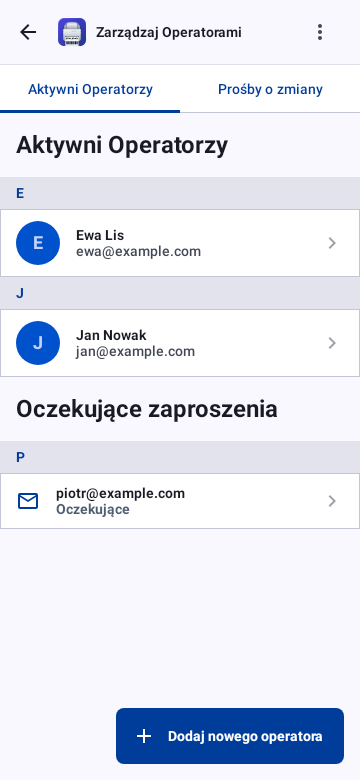
Settings → Operators lists your team and the invitations you sent. Invite someone by e-mail; they join after they accept the invitation and sign in. If an invitation can't be sent (a typo in the address, no room left on the plan), the form says why. You can change someone's permissions at any time or Remove from team: they lose access to your products and journal at once, but their account isn't deleted (at the next sign-in they start the setup again), labels they printed stay in the journal and their devices keep their seats until you remove them under Settings → Devices.
Permissions
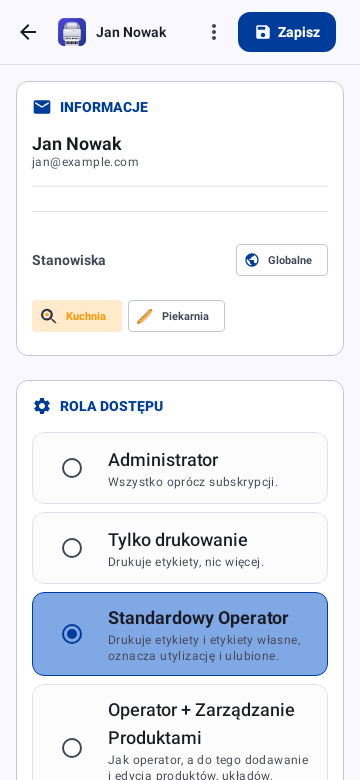
Each operator has a set of permissions. A preset gives a sensible start, with a line on what it allows - Printing only, for example, prints labels and nothing else. Switching single permissions on or off makes it Custom, shown with how many permissions are on; the permission list then opens by itself. The permissions are grouped by area, printing first:
| Area | What it allows |
|---|---|
| Printing and journal | Print labels, print custom labels, print on other devices, print orders, mark entries disposed (one or all expired), export the journal, delete journal entries, clear the history and journal |
| Products | Add, edit and delete products, import products, mark favourites |
| Product types | Add, edit and delete product types |
| Layouts | Add, edit and delete label layouts |
| Catalogues | Add, edit and delete ingredients and custom fields |
| Organisation | Manage the team (invite, change and remove team members), markets and languages, label types, translations |
Print on other devices lets an operator send labels to another device's printer (Printing on another device). No preset includes it - you switch it on for the operators who should; the device that receives the label only needs the permission to print. Print orders lets an operator use order mode: every label of a take-away or delivery order at once. No preset includes it either; operators who used order mode before can use it again once you switch it on.
Editing products also depends on workstations. A product belonging to another workstation is sent for approval instead of being saved; see Workstations and change approvals.
Devices
Each plan prints on a set number of devices:
| Plan | Devices |
|---|---|
| Solo | 1 |
| Duo | 2 |
| Trio | 3 |
| Team | 5 |
| Business 10 / 25 / 50 | 10 / 25 / 50 |
| Enterprise | as agreed |
- Registering a device: a device registers the first time it is set up for printing, and when you sign in on a new phone, tablet or computer while your plan has a free seat (if you may print). Settings → Printing on this device is on only for a registered device; turning it on for an unregistered one asks to register it. - While the server saves it, you see Saving the device… waiting for the server to confirm. The device counts only once the server confirms it. - If that fails, the app tells you why and offers Try again. If you have just bought a plan, the app checks the licence a few more times on its own.
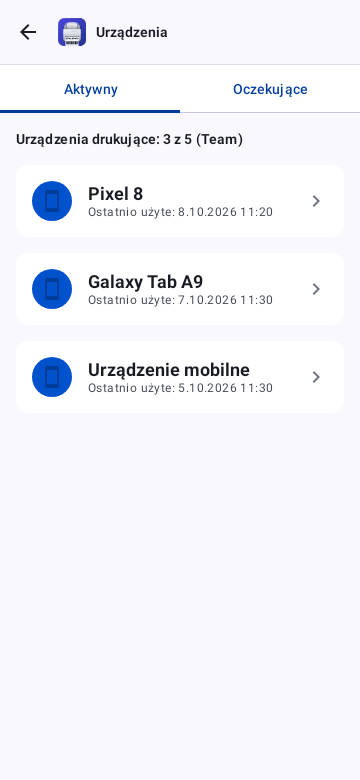
- Seats in use: the Devices row in Settings and the Devices screen show, for example, Printing devices: 3 of 5 (Team); Enterprise shows just the number.
- When every seat is taken: - The owner or an administrator chooses which device gives up its seat. The owner can also choose More devices? Change plan. - An operator's device sends a request, which appears in Settings → Devices under Pending.
- Waiting requests: a badge on the Settings tab and on the Devices row shows a device waiting for a seat (Operators and Notifications show their waiting items the same way); Devices then opens on Pending. A request shows the device's name and workstation; Approve asks for both, already filled in.
- Managing devices: Settings → Devices → Active lists the devices with their name, workstation and last print. Rename a device or assign it a workstation there, or remove it to free its seat. Removing a device stops it printing; it doesn't register itself again - turn printing on there to ask for a seat.
- Sending labels to another device (a phone without a printer sends to the tablet with one) needs a seat on both devices - see Printing on another device.
Subscription
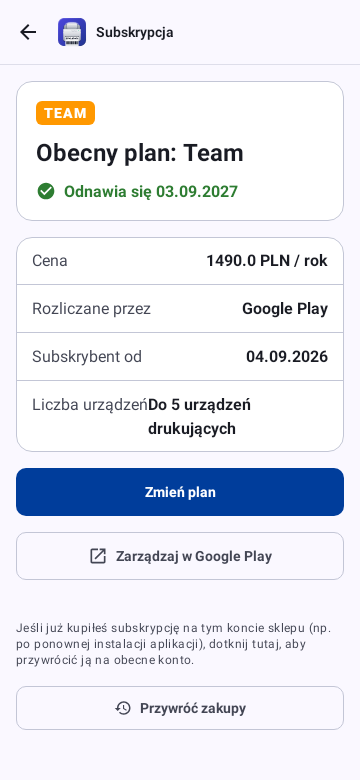
The Subscription section in Settings shows the plan, its price per month or per year, the number of printing devices and where it is billed (Google Play on Android, card payment on the web). Only the owner can choose or change the plan: Change plan opens the plan screen for a plan bought on Google Play in the Android app; a plan paid by card on the web is changed in its subscription management. Team members see the plan as Active · Managed outside the app.
Choosing a plan
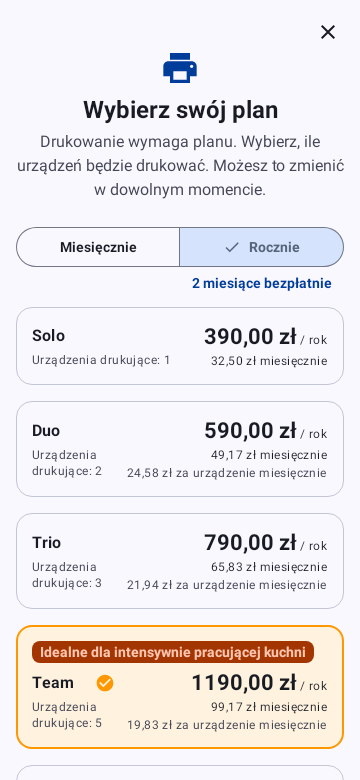
- Open the plan screen from Settings → Subscription or wherever printing asks for a plan.
- Choose Monthly or Yearly. Yearly is cheaper: the badge shows how many months you save.
- Tap the plan for the number of devices that will print: Solo, Duo, Trio or Team, or Business with 10, 25 or 50 devices. For more, Contact us on the Enterprise card for an individual offer.
- Each card shows the price per month or per year, what it comes to per month and per device.
- Tap Subscribe (or Start free trial when the store offers one) and confirm in Google Play or the card payment page.
The plan renews automatically until you cancel it in Google Play or, on the web, in the subscription management page. Restore purchases brings back a plan bought with the same store account, for example after reinstalling the app. Your current plan is marked and can't be bought twice; to switch it between monthly and yearly, use the store's subscription management.