 EVoLabelsHelp
Google Sheets sync
You can keep your products in the app only, or link a Google spreadsheet and edit them there too (for example many products at once on a computer). The sync is two-way and runs when you start it.
Open Settings → Labels & data → Sheet & sharing (the owner's account), or choose Google Sheets during setup.
1. Sign in with Google
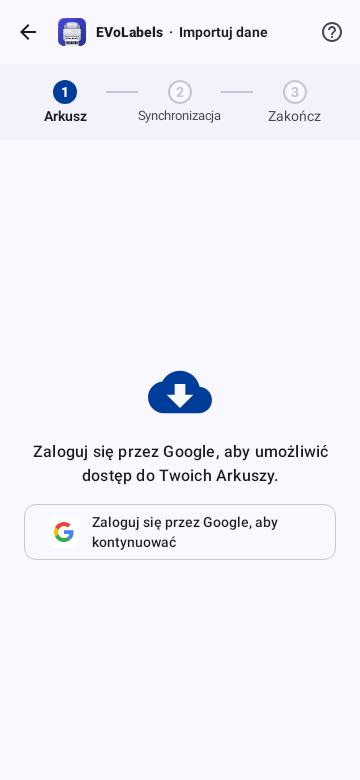
The app asks for access to your Google Sheets and to the Drive files it creates or that you open with it. You can switch to another Google account later.
2. Create or choose the spreadsheet
- Create Spreadsheet makes a new sheet from the EVoLabels template in your Drive. Fill it with your products: one row per product, columns for the product type, dates, fields and so on.
- Choose existing spreadsheet links a sheet you already made from the template.
- Open Spreadsheet opens the linked sheet in Google Sheets; Unlink Spreadsheet disconnects it (the products stay in the app).
3. Sync
Tap Sync Products Now. The app compares the sheet with the app since the previous sync and lists what differs:
| Change | Meaning |
|---|---|
| New in Spreadsheet | a new row in the sheet |
| New in App | added in the app since the last sync |
| Item modified | changed on one side or both; pick the version to keep |
| Deleted in the sheet / in the app | removed on one side since the last sync |
Decide per item, or use Prefer All Sheet / Prefer All App, then Finalize Sync. Items marked Will be DELETED from app are removed from the app when you finalize - check them before you confirm. The summary shows what was added, changed and removed.
Sharing your product database
Share spreadsheet invites another EVoLabels user (for example a second location) to use your product database. They get a copy in their own account; later changes on either side stay in that account. To accept, they sign in with Google and pick the shared file in the file picker (Shared with me tab), which gives EVoLabels access to that one file.
Tips
- Don't rename, move or delete the template's sheets and columns; the sync expects them where the template put them. The ID columns the app needs are hidden - leave them hidden and unchanged.
- Label names lists only your organisation's own label names; the built-in names are part of the app and stay there.
- Need a column of your own on the products sheet (a supplier, a note)? Add it after the last column with a name starting with [B], e.g. "[B] Supplier". The app leaves it alone and keeps what you type in it for each product.
- Ingredients shows each ingredient in the sheet's language. Renaming one there renames it in that language only - its other translations, amounts and allergens in products stay.
- Your team is never part of the spreadsheet: invite and manage people in Settings → Operators only. Sync does not add, change or remove team members.
- Sync before and after large edits so the list of differences stays short.
- Without a linked sheet everything works in the app; you can link one at any time.