 EVoLabelsHelp
Journal and journal QR
The journal records every printed label: which product, when it was printed, when it expires and whether it has been used up or thrown away. It helps you keep an eye on expiry dates and document disposal, mostly for internal (prep and rotation) labels.
The journal screen
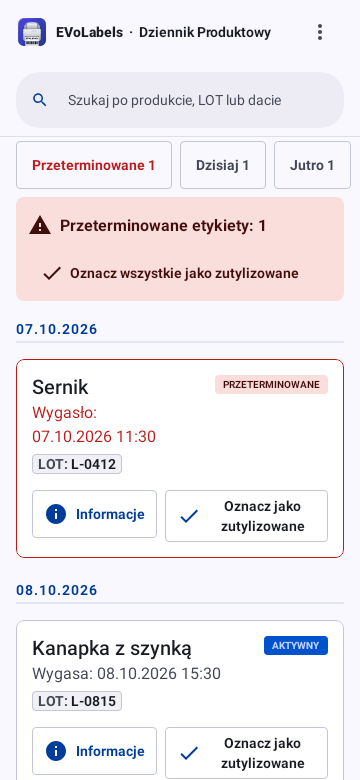
Open Journal from the main menu. Labels are grouped by expiry date (Today, Tomorrow, then the date): expired first, then the ones still valid, then labels without an expiry date, and the disposed ones at the end.
- Expired, Today and Tomorrow above the list count the labels that have expired, expire before midnight and expire tomorrow - the same labels as the Expiring today widget. Tap one to see only those labels; tap it again to see all of them.
- Search by product name, LOT or date; filter by workstation when you work with several.
- Information opens the label's details, including a preview of the printed label.
- Mark disposed (the check mark) records that the product was used up or thrown away. For 5 seconds Undo puts the label back as it was. When labels have expired, a red bar above the list says how many: Mark all disposed there marks all of them at once, also with Undo.
- Export journal saves one month of the journal as an Excel file, for inspections or your own records.
- Select labels with a long press (with a mouse: right-click, Ctrl+click or ⌘+click; Shift+click adds every label in between; Ctrl+A all shown), then Mark disposed or Delete them together - deleting is only possible this way. Tapping a label opens its details.
What a team member can do depends on their permissions: mark disposed, mark all expired as disposed, export, delete entries (see permissions).
Expiring today widget (Android)
The Expiring today widget (long-press the home screen, Widgets, EVoLabels; the list shows it with sample labels) lists the labels that expire before midnight and the expired ones not yet disposed, soonest first, with the time they expire. Tap one to open it and Mark disposed. The widget shows what the app last saw: open the app now and then so labels printed on other devices appear; times and "today" update by themselves every 30 minutes.
Expiring today widget (iPhone and iPad)
Add Expiring today like any widget (touch and hold the Home Screen, Edit or +, Add Widget, EVoLabels). It lists the labels that expire before midnight and the expired ones not yet disposed (in red, Expired), soonest first; "+3" means three more. On the medium and large widget, tap a label to open it and Mark disposed; the small one opens the app, or the label when there is only one. On the Lock Screen (touch and hold it, Customize, Lock Screen, then the widget area), EVoLabels shows how many labels expire today, or the count with the first two labels. The widget shows what the app last saw on this iPhone or iPad; "today" and the expired marks change by themselves, also at midnight.
Expiring today on your watch (Wear OS)
On a Wear OS watch with EVoLabels installed (see Quick print on your watch):
- The Expiring today tile lists the first labels expiring before midnight and the expired ones not yet disposed, soonest first, with the time they expire; "+3" means three more. Tap one and the phone opens it, ready to Mark disposed.
- The Expiring today complication shows how many labels expire today on your watch face (long-press the watch face, Edit, pick a complication slot, EVoLabels).
- Opening EVoLabels on the watch lists all of today's labels and your favorites.
Like the widget, the watch shows what the phone app last saw and updates "today" and the times by itself every 30 minutes.
Expiring today on your Apple Watch
With the EVoLabels Apple Watch app (see Quick print on your Apple Watch):
- Opening EVoLabels on the watch shows Expiring today: how many labels expire before midnight and all of them, expired ones not yet disposed in red (Expired), soonest first. Tap one and the iPhone opens it, ready to Mark disposed.
- The Expiring today complication shows today's count on your watch face (touch and hold the watch face, Edit, pick a complication slot, EVoLabels); the larger one and the Smart Stack card show the count and the first two labels. The card rises in the Smart Stack when a label is about to expire or expired ones wait to be disposed. Tapping it opens the list on the watch.
The watch shows what the iPhone app last saw; "today" and the expired marks change by themselves, also at midnight.
Mark disposed from your watch
In the EVoLabels app on the watch (Wear OS or Apple Watch), tap a label under Expiring today, then Mark disposed and confirm. Your phone marks it disposed with your account, exactly like Mark disposed in the journal (you need that permission): it leaves the list on the watch and shows as disposed in the journal. Open on phone opens the journal entry on the phone instead.
Automatic replacement
When a product has Automatic replacement on, printing new labels marks as many of the product's oldest labels as disposed: one new label replaces the oldest, three new labels the three oldest (or all of them if there are fewer). Print a new batch from a scanned label's QR code replaces exactly that label, never another batch of the product. The preview shows what will be replaced - one label by its date, several as "Replaces 3 labels" - and Change lets you tick the labels to replace or choose Do not replace. Your choice stays even when the journal updates or you change the quantity; until you change it, a new quantity picks the oldest labels again. Old labels are marked only once the new ones printed - a failed print replaces nothing. A label sent to another device's printer replaces them when that device prints it; order labels, labels printed with a tap on a favorite and exact copies replace nothing. Turn it on or off in the product's settings.
Journal QR on the label
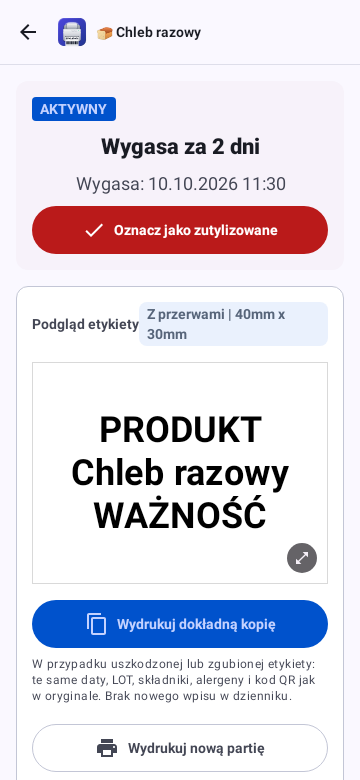
A product type can print a journal QR on the label (in the binding editor, set a QR code as journal QR). Scanning it with the app opens that label's journal entry, titled with the product's name: its status, how long until it expires (or since it expired, such as "Expired 3 h ago"), the expiry date and the label preview, with Mark disposed at hand. Anyone checking the fridge can see at once whether the product is still good and record its disposal without searching. After marking it, Undo puts it back for 5 seconds, Done goes back, and on Android Scan next label opens the camera for the next container.
Printing a scanned label again
The scanned label offers two ways to print it again:
- Print an exact copy - for a damaged or lost label. The app prints the label exactly as it was first printed: the same dates, LOT, ingredients, allergens, layout and journal QR, even if the product, its shelf life or the market rules changed since. No new journal entry is made and nothing is replaced; the entry shows how many exact copies were printed and when. A copy is kept for every label printed from this version of the app on (also labels sent to another device's printer); older labels have none - print a new batch instead.
- Print a new batch - the food was prepared again. The label preview opens with today's date and the product's current rules; printing makes a new journal entry with its own QR code, which replaces the scanned label. The LOT, dates and other values of the scanned label are not carried over.
A reprint never extends a label's shelf life: an exact copy keeps the original dates, and a new batch starts from the moment it is printed.
Print history
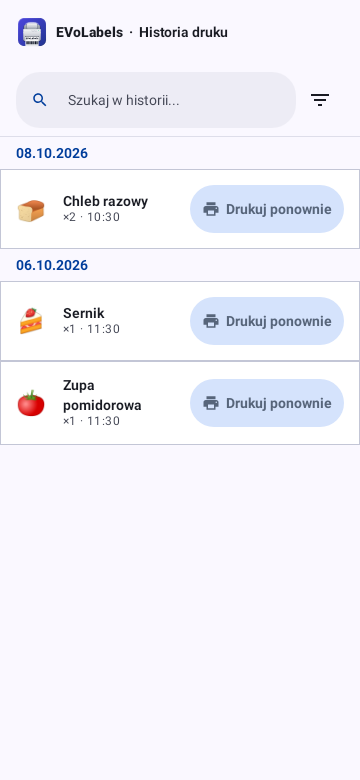
History lists what was printed, newest first, with search and a workstation filter. Each entry shows the number of copies, the time and who printed it, such as "×3 · 11:30 · Anna". Print again opens the label preview with the same number of copies, like Print a new batch on a scanned label. Opening an entry shows the label as it was printed.
Statistics
Owners and administrators find Statistics in Settings. It sums up the journal of your whole organisation: what was printed, what was thrown away and which devices print. Team members without an administrator role don't see it.
- Period: Last 30 days at first; choose Last 7 days, Last 90 days, Last 365 days or Custom range (at most 365 days). The journal keeps entries for 180 days, so longer periods show only what is still in it.
- Filters: a workstation, device, operator or product narrows every number on the screen. Day, Week (Monday to Sunday) or Month groups the chart.
- Labels printed, Exact copies, Active operators, Waste rate and the busiest hour at the top; then Labels printed over time (the waste part in red), Peak hours, Top products, By workstation, Labels per operator and By device.
- Today: labels expiring before midnight and expired labels not yet disposed - the same labels as the Expiring today widget.
- Devices and plan: printing devices in use out of what your plan allows, devices waiting for approval, and when each device printed last.
- Export CSV saves the numbers on the screen as a spreadsheet file; Refresh reads the journal again.
Labels count by quantity: printing 3 copies of a label counts 3. Days and hours are your device's time.
What counts as waste
Waste is judged by when a label was marked disposed compared with its expiry date:
| In the journal | Counts as |
|---|---|
| Disposed before the expiry date | Used in time (not waste) |
| Disposed on or after the expiry date | Waste |
| Expired and still not disposed | Waste (and still to be thrown away) |
| Disposed before this version of the app recorded the time | Disposed, time not recorded - neither |
| Not expired yet, or a label without an expiry date | Not counted |
Waste rate is waste out of the labels whose outcome is known (used in time + waste). Most wasted products shows which products expire before they are used - candidates for smaller batches.