 EVoLabelsHelp
Printing and printer setup
Before you print
Printing needs three things:
- A plan with printing. The free plan can prepare products and product types but not print (see Team, permissions, devices and subscriptions).
- An authorized device. Each plan prints on a set number of devices; the app asks to authorize the phone, tablet or computer the first time it prints.
- The Print permission for team members (owners and administrators always have it).
Connecting a printer
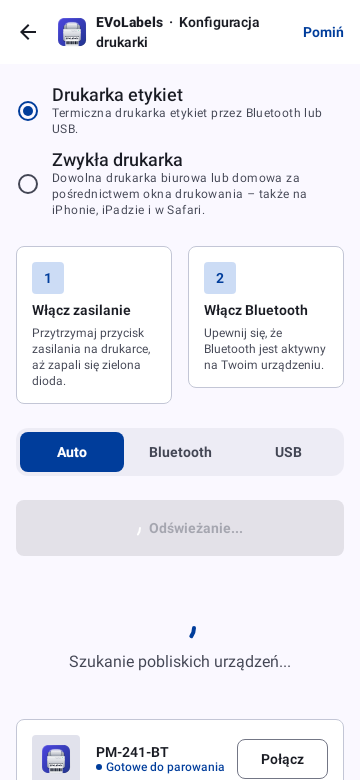
Open Settings → Printing → Printer & label paper (or the printer step of the setup). Printing comes first in Settings; the row shows whether a printer is connected and the label size, for example Connected · 50×30 mm. The printer chip at the top of Settings, Quick print and the print preview names the printer and its label size (Phomemo M220 · 50×30) or says No printer; tap it to open printer setup.
- Switch the printer on and make sure Bluetooth is on for your device.
- The app searches for printers nearby. Auto looks for every kind; Bluetooth and USB (Android only) narrow the search - they don't change how a connected printer is used.
- Tap Connect next to your printer. The app recognises the model from its name where it can. The printer shows Connecting... (the others wait meanwhile), then Connected with Disconnect. If it doesn't connect within half a minute, the row says why - for example Couldn't connect. Is the printer on and nearby? - and offers Try again. The printer chip says Connecting... meanwhile.
When the printer goes away (switched off, out of range), the app reconnects to it by itself: after a few seconds, then less and less often (every 30 seconds at most), and at once when Bluetooth is switched back on or you return to the app. Disconnect in printer setup stops this.
How you connect depends on the device:
| Device | Connection |
|---|---|
| Android | Bluetooth (both kinds) and USB. On a laptop or tablet without Bluetooth (some Googlebooks and Chromebooks): USB label printers and the regular printer - printer setup says so |
| Web (Chrome or Edge) | Bluetooth through the browser; printing is switched on per computer in Settings |
| Safari, iPhone, iPad (web) | No label printer: these browsers have no Bluetooth. Use a regular printer, Chrome or Edge, or send labels to another device |
| Mac (EVoLabels for Mac) | USB label printers set up on the Mac - see Printing from a Mac; no Bluetooth |
If the printer doesn't appear, pair it in your device's Bluetooth settings first, then search again. With a USB printer on Android, the device asks whether EVoLabels may use it: choose OK.
Printing from a Mac
EVoLabels for Mac is the same app in a window, for a workstation with a label printer on a USB cable. It runs on Macs with Apple silicon (M1 or later). Install it from the .dmg file you get from EVoLabels: open it and drag EVoLabels to Applications. No download link yet? Write to contact@evolabels.app.
- Plug the printer into the Mac, switch it on and add it in System Settings → Printers & Scanners. Any driver will do: the app sends the label printer's own commands.
- In EVoLabels, open Settings → Printing → Printer & label paper. The Mac's printers are listed, USB printers first. Click Connect next to your label printer; the app connects to it again at the next start.
- If the app doesn't recognise the model by its name, choose it in the printer settings, as on a phone.
Good to know:
- The Mac is one device of your plan, like a phone or a tablet.
- Bluetooth printers are not supported on the Mac yet. A regular printer works through the Mac's print dialog (Regular printer).
- Sign in as on a phone: with your e-mail and password, Google or Apple (these open your browser). If you installed EVoLabels from the Mac App Store, you buy a plan in the app with your Apple account, as on an iPhone. The version from the .dmg file opens the web app in your browser for that. A plan bought on any device applies to the Mac too.
Tested printers
These label printers were tested with EVoLabels on real hardware:
| Printer | Print width | Connection | Works on |
|---|---|---|---|
| Phomemo M220 | up to 72 mm | Bluetooth | Android, web (Chrome or Edge) |
| Phomemo M221 | up to 72 mm | Bluetooth | Android, web (Chrome or Edge) |
| Fichero A4 (portable A4) | A4 paper | Bluetooth | Android, web (Chrome or Edge) |
| WalkPrint (YHK, FDT4-0) | up to 48 mm | Bluetooth (classic on Android, Bluetooth LE on iPhone and iPad) | Android, iPhone and iPad app - not in browsers |
| AstraFun mini thermal printer | up to 48 mm | Bluetooth | Android, web (Chrome or Edge) |
Other thermal printers speaking the same languages (Phomemo, Zebra ZPL, TSC TSPL, ESC/POS) usually work too: the app recognises many models by name, and Printer settings let you set the width, alignment and density by hand. Starting out? A Phomemo M220 or M221 with 50 x 30 mm or 40 x 30 mm labels covers most kitchen and pre-packed labels.
Printing on a regular printer
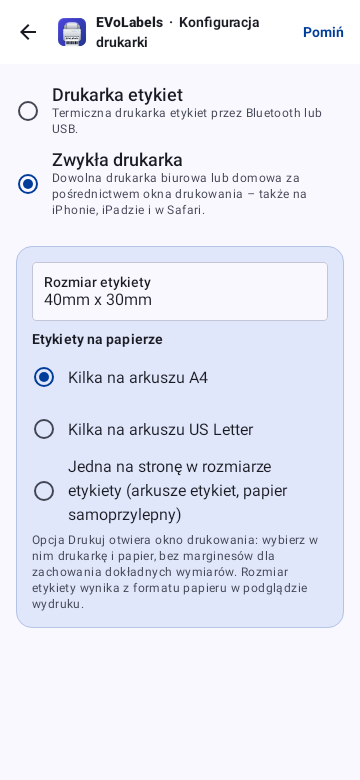
Any office or home printer works too. In Settings → Printing → Printer & label paper choose Regular printer: Print then opens your device's print dialog (Android, iPhone and iPad, and every browser - also Safari), where you pick the printer and paper. Choose the Label size and how labels go on paper:
- Several on an A4 sheet or on a US Letter sheet - the labels are laid out in a grid at their real size, a label set and every copy in one print. Cut them out or use A4 sticker sheets.
- One per page at the label's size - for label sheets and printers that take label paper. The page is the label size.
Both can also be changed right before printing, on the paper chip of the label preview (see Printing a label).
Labels print sharp: the app draws them for the regular printer at about 600 dpi in shades of grey, so text and lines have smooth edges, while a label printer still gets its own black-and-white dots.
Layouts with colours and images print in colour on a regular printer; a label printer prints them black, with coloured backgrounds as a light dot pattern, and the print preview shows which one you get. Images print in colour once the app has loaded their original (offline: black and white). Exact copies of a colour label print black like that, because the kept copy is the black-and-white label - red stays red when it was printed on a two-colour printer.
For exact sizes set the margins to none and the scale to 100 % in the print dialog. The same rules apply as for a label printer: the device needs printing permission and a printing seat, and every print is recorded in the journal (also when you close the dialog without printing - browsers and Android don't tell). Exact copies of scanned labels print the same way, as the label printer printed them: dot for dot, so they look coarser than a new print.
Printer settings
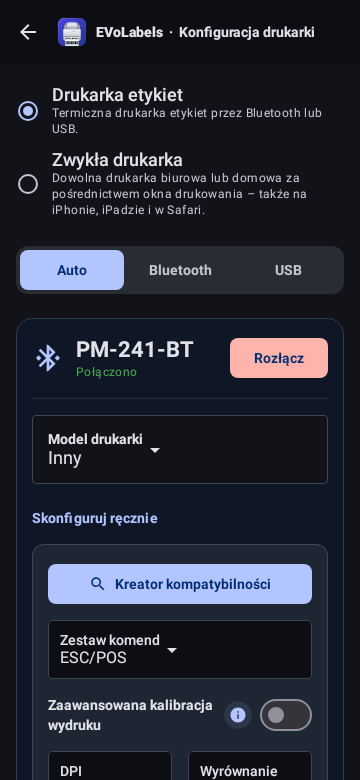
Once connected, check:
- Printer model. Picked automatically for known printers. Built in are Phomemo (M110, M120, M200, M220, M221, D30, Q30), Zebra, TSC, Godex, Honeywell, Argox, Brother, Bixolon, Epson, Fichero, WalkPrint and others, plus generic models per printer language (TSPL, ZPL, CPCL, DPL, EPL, EZPL, ESC/POS 58 and 80 mm). Brother QL-800, QL-810W and QL-820NWB print red and black on DK-22251 tape: red on the label stays red, the rest prints black.
- Compatibility wizard. For a printer that isn't listed: it tries the printer languages one by one, then the printing width, and keeps what prints correctly.
- Paper type. Gap (labels with spaces between them), black mark, black card or continuous roll.
- Paper size. Pick your label size or enter a custom width and height in millimetres (10 to 300 mm). A product type can also fix its own size. You can change the size right before printing too, on the label preview - it is the same setting.
- Print density. Light, medium (the printer's default) or dark.
- Calibration. Prints a ruler; choose the number at the left edge of the label so the content lands where it should. Use it when labels come out shifted.
WalkPrint printers and label paper
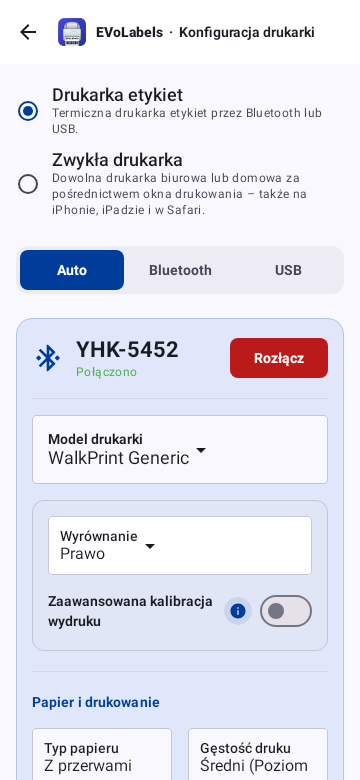
WalkPrint printers (names like YHK-..., FDT4-0) look for the gap after every label themselves:
- With Gap, black mark or black card paper chosen, the printer feeds to the next label after each one. On a plain roll without gaps it keeps feeding while it looks for one - choose Continuous for such rolls.
- If labels don't stop at the gap (or stop in the middle of a label), tap Calibrate paper sensor with the label roll loaded: the printer feeds a little and learns where the gaps are.
- If a blank label comes out after every label, or tearing off cuts the end of a label, turn on Advanced print calibration in printer setup: Label length correction (−2 mm by default) - lower it if the printer skips a label, raise it if labels run into each other; Tear-off feed (2 mm by default) - raise it if tearing off cuts the label. The whole label is scaled to fit, never cut off.
- These printers can't hold the next label while they print one, so the app sends each label only once the one before has finished. Orders and several copies take about a second longer per label.
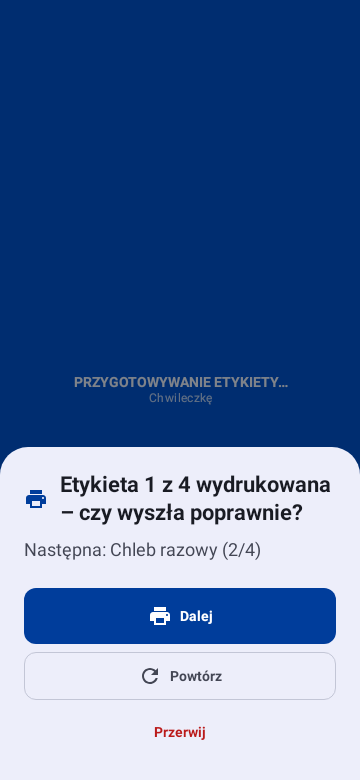
- One label at a time. These printers don't feed reliably from one label to the next, so when you print several labels - copies, a label set, an order - the app prints one and asks Label 1 of 3 printed – did it come out right?. Continue prints the next one (the question says which, for example Next: Bread (2/3)), Print again prints the same label once more, Stop ends the print. The journal records the labels that printed: stop after 2 of 4 and it records 2, and only 2 older labels are replaced. A single label prints as before. To print without the question, switch off Print labels one at a time in printer setup's Advanced print calibration.
- On iPhone and iPad the printer connects over Bluetooth LE. If the app says the printer has no Bluetooth LE channel for print data, that printer prints only over classic Bluetooth - use it with the Android app.
Printing a label
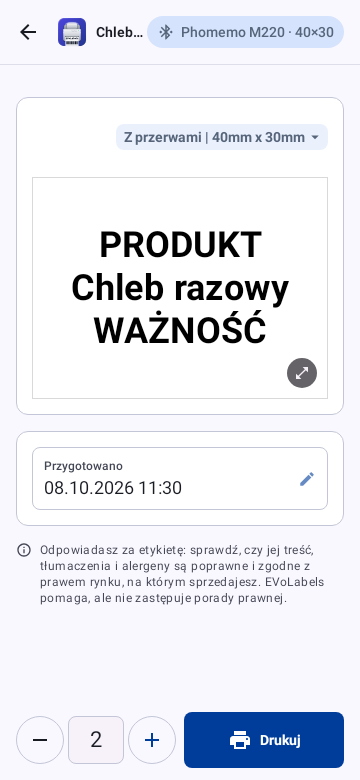
Open a product. The preview shows the label exactly as it will print, for the market and languages you choose at the top. Fill in what the label asks for (for example the lot, or when it was Prepared: tap it to pick the date and time, or −30 min, −1 h or Yesterday), set the quantity and tap Print. On a phone the quantity and Print stay at the bottom of the screen; tap the number to type it. This device remembers the quantity and the label type of each product for the next time. When your organisation prints both label types, Customer-facing and Internal at the top switch between them. Each printed label is recorded in the journal. If the printer doesn't take the label, the app says Not printed with the reason and offers Try again; nothing is recorded then. No printer connected? Print opens Connect a printer with the printers nearby: tap Connect and the label prints as soon as the printer is connected; Printer settings opens the full printer setup and Cancel leaves the preview as it was. After printing, the preview stays open and a short message says what was printed.
Market and label languages. When your organisation prints for more than one market or language, the card at the top shows the market the label is for (flag and name) and its label languages. Tap it to open the market list - at the bottom of a phone, in the middle of a tablet or computer screen:
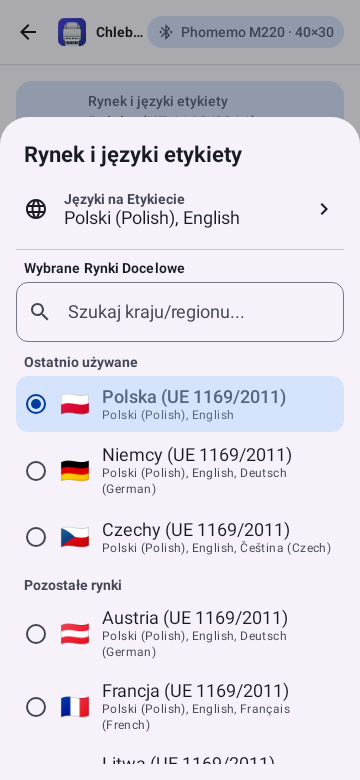
- The current market comes first, then the markets you picked most recently on this device, then all the others from A to Z. Each one shows the languages its label would print in.
- With more than eight markets, type part of a name in the search field.
- Tap a market and the label changes at once; the market's required languages are added automatically. Label languages in the same list adds or removes languages.
- Quick printing, Printer settings and the previews in the product and product type editors use the same list, so a market picked anywhere is first there too.
The markets and languages on offer are your organisation's (Settings → Labels & data → Markets & languages); the choice on this screen is only this device's.
If the product isn't translated into one of the label languages, a red card under the label lists each such language and how many items are missing - that text would print in another language. Add the translations in the product (or switch the language off) before you print.
Label size. The chip above the preview shows the paper: the paper type and label size, for example Gap | 40mm x 30mm (with a regular printer the sheet instead, for example A4 | 40mm x 30mm). Tap it to pick another label size - one of the sizes from Printer settings or a custom width and height (10 to 300 mm) - and, with a regular printer, how labels go on paper. The label is laid out again at once to fill the new size (a 50 x 30 mm roll uses the whole 50 x 30 mm). The choice is saved as this device's setting, the same one as in Printer settings, so the next labels use it too. It can't be changed while a label is printing.
Tap the label (or the button in its corner) to see it full size, as it will print: pinch, scroll the mouse wheel or use + and - to zoom, drag to move around, and double-tap to switch between the whole label and a close-up. Labels on the product form, in the product type editor and in the journal open the same way.
At the end of the screen the app reminds you that you are responsible for the label: check its content, translations and allergens before you use it. For internal labels, the note only asks you to check the dates and content.
Printing without internet
Once your device is set up, EVoLabels keeps printing when the internet drops - in a basement kitchen, a food truck or at a market stall.
| Without internet | |
|---|---|
| Products, product types and the label preview | Work |
| Printing on the connected printer, quick printing | Works |
| Journal | Each print is recorded on the device |
| Signing in, authorizing a new device, buying or changing a plan | Need a connection |
| Google Sheets sync, sharing products, new machine translations | Need a connection |
- Back online: journal entries and changes made offline are sent automatically, and the rest of your team sees them then. Labels sent to another device wait and print once both devices are online.
- Your plan: the app remembers your plan while offline. Connect at least once every 7 days so it can confirm it.
- On the web: keep the EVoLabels tab open. Printing goes on when the connection drops, but the page can't be opened again until you're back online. For a station without reliable internet, use the Android app.
Printing on another device
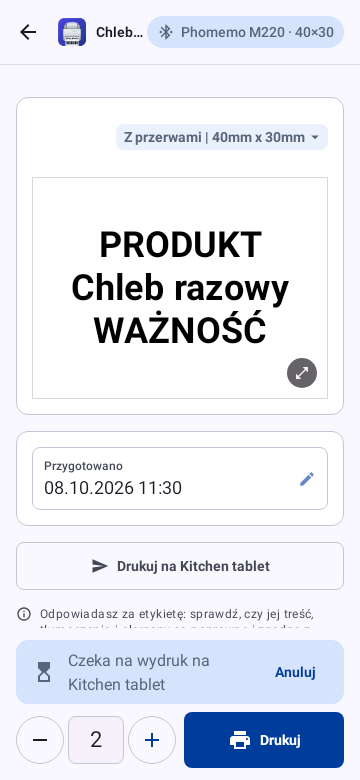
No printer at hand? Send the label to a device of your team that has one - for example from your phone to the kitchen tablet. On a device without a printer the label preview says Prints on and the device's name, and the main button is Print on that device: the one you sent to last, or the only one. Other device… picks another. With a printer connected here, Send to another device does the same. The label is printed exactly as your preview shows it (dates, lot, quantity), and the journal records it under the device that printed it.
- Both devices must be authorized for printing (see Devices), and you need the permissions to print labels and to print on other devices (owners and administrators always have both; operators get it from the owner - Permissions). Only other authorized devices that have a label printer are offered: a device counts once a label printer was connected on it, and no longer after Disconnect in its Printer setup, after switching printing off there or choosing a regular printer.
- The other device prints while EVoLabels is open on it and its printer is connected; until then the label waits. With notifications allowed, the device is notified when a label arrives. A print station keeps printing with the app in the background (Android).
- The preview shows what happens to your label: waiting, printing, printed or not printed (with the reason). While it waits you can Cancel it. A label that waits more than 12 hours is not printed any more - send it again. With notifications allowed, your device also tells you when the label was printed or not printed (with the reason), after you have left the preview too.
Print station
The device that prints for the others - for example the kitchen tablet with the label printer - can be a print station: Settings, Print station, switch it on. The screen shows the device, its printer and how many labels wait for it.
- Android: the station keeps printing labels sent to the device while EVoLabels is in the background or the screen is off. A notification shows while it is on; Turn off in the notification or the switch stops it. On Android 14 and later EVoLabels needs the permission to find nearby devices (Bluetooth), otherwise the station doesn't start. Keep the device charging.
- iPhone, iPad, the web and the Mac app: the station keeps the screen on while EVoLabels is open. Leave EVoLabels open on the device: iPhones, iPads and browsers can't print to a label printer with the app in the background.
- Labels asked for from a watch are made on the station's screen: they print only while EVoLabels is open on it, also on Android. On Android, labels sent from another device's preview print in the background.
- With a WalkPrint printer, several labels sent to the station print one at a time with the question after each, on the station's screen, while EVoLabels is open there. With EVoLabels in the background nobody can answer, so they print one after another without asking.
Quick printing
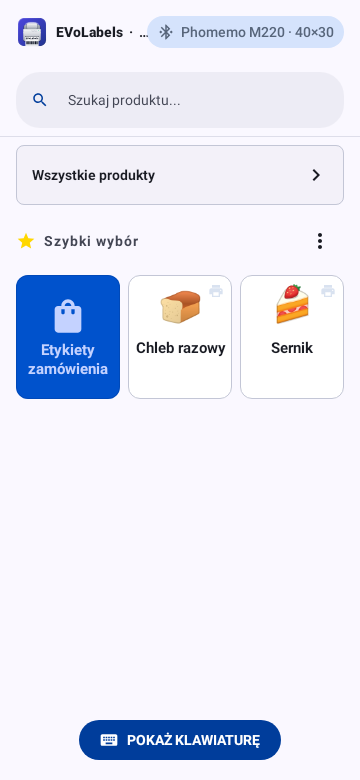
Quick printing shows the products marked for quick selection as tiles; search finds the rest. Tap a product to go straight to its preview.
Tap prints immediately
To print a favorite with one tap, switch on Settings → Printing → Tap prints immediately on the device; each device has its own setting. When you print internal labels only, it is on from the start; otherwise it is off until you switch it on. A tap on a favorite then prints the quantity this device last printed of it, without the preview; the print mark on the tile shows which favorites do this. The app says what it printed: tap Change to open the preview, for example for another quantity. If the label didn't print, tap Try again. With no printer connected, Connect a printer opens and the label prints as soon as the printer is connected.
Products that need something typed at print time - a LOT, the manufacturer's date or a required field - still open the preview, and touching and holding a favorite always opens it. A label printed with a tap never replaces an older label in the journal; to replace one, print from the preview.
Quick print widget (Android)
Add the Quick print widget to your home screen (long-press the home screen, Widgets, EVoLabels; the list shows it with sample products). It lists up to eight of your favorite products; tap one and the app opens its label preview, ready to print. The widget never prints by itself - the printer, your plan and the device authorization are checked in the app as usual. It shows what this device's user may see, and nothing after signing out. Your favorites change in the app (Mark as favorite).
Quick print widget (iPhone and iPad)
Touch and hold the Home Screen, tap Edit (or +), then Add Widget, find EVoLabels and pick Quick print. The small widget shows your first favorite product, the medium one up to four; tap one and the app opens its label preview, ready to print. As on Android, the widget never prints by itself, shows only what this device's user may see and shows Open EVoLabels and sign in after signing out. It updates whenever the app is open.
Quick print on your watch (Wear OS)
With a Wear OS watch paired to your Android phone, install EVoLabels on the watch (Play Store on the watch, or the phone's Play Store page of EVoLabels -> install on more devices) and add the Quick print tile (swipe through the tiles, then +). It shows up to four of your favorite products. Tap one and the phone opens its label preview, ready to print - the watch never prints. If the EVoLabels app isn't open on the phone, a notification there opens it with one tap. The watch shows what the phone app last saw; it needs the app signed in on the phone (Open EVoLabels on your phone and sign in until then) and the phone nearby or connected.
Quick print on your Apple Watch
EVoLabels comes with an Apple Watch app: it installs with the iPhone app (or in the Watch app on the iPhone: EVoLabels, Show App on Apple Watch). Open EVoLabels on the watch and swipe up to Quick print: your favorite products. Tap one and the iPhone opens its label preview, ready to print - the watch never prints. The watch shows Continue on your phone; if EVoLabels isn't open on the iPhone, a notification there opens it with one tap. For the Smart Stack or a watch face, add the Quick print widget (turn the Digital Crown or touch and hold the watch face, Edit): it shows your first favorites and opens the watch app's list. The watch shows what the iPhone app last saw; it needs the app signed in on the iPhone (Open EVoLabels on your phone and sign in until then) and the iPhone nearby or connected (Can't reach EVoLabels on your phone otherwise).
Send labels to the printer from your watch
In the EVoLabels app on the watch (Wear OS or Apple Watch), tap a favorite under Quick print, choose how many labels (Quantity) and, if your team has several, the device that prints them (Print on), then tap Send to printer. The label goes to that device like Send to another device: the device with the printer makes the label with its own label settings and prints it while EVoLabels is open on it (see Print station). The watch shows Waiting for ..., Printing on ..., Printed on ... or Not printed on ... with the reason. Open on phone opens the label preview on the phone instead.
Your phone sends the label with your account, so the usual rules apply: you need the permissions to print labels and to print on other devices, the phone must be authorized for printing, and products that ask for a lot number or the manufacturer's date are printed from the phone. The watch says why when something can't be sent.
Order mode
Print every label of an order at once - a take-away or delivery order, a phone order or one from a walk-in customer - instead of opening each product. Order mode needs the Print orders permission (Permissions); owners and administrators always have it.
- On Quick printing, tap the Order labels tile among the favorites. It shows once someone who may set favorites adds it for the team: ⋮ next to Quick select → Order labels. The star at the top of the order screen removes it or adds it back.
- Tap the products of the order. Tapping a product again adds one more; + and - on a line change how many labels it gets (one per portion or pack). Search finds products that aren't favorites.
- Optionally type the Order number and set the Pickup time (in 15, 30, 45 or 60 minutes, or pick a time).
- Leave Seal label for the bag on to print one tamper-evident label for the bag or box: the order number big, the pickup time, the number of items, your business name and Sealed for your safety. Stick it across the bag's opening.
- Tap Print all. The labels print one after another - the items first, the seal last - and the screen shows which label is printing and how each went. If a product asks for values when it prints - a LOT, the manufacturer's date, a required field or code - Fill in details opens first with only those products and fields; once they are filled in, Print all there prints the whole order.
Each product label is the same as when you print the product on its own: the same layout, values, dates and expiry, one journal entry per line of the order (its quantity as the number of labels), and an exact copy kept for reprints. Order labels are customer-facing labels when your organisation prints those, and they never replace an older label of the product in the journal - they leave with the order. The journal entries remember the order and its number; the seal is recorded like a quick label, under the order number.
- Something didn't print? The summary lists it with the reason. Print the rest prints the labels that failed, for the same order.
- Products that ask for details are marked on their tile. Their line shows what you entered, and Edit details changes it. The values stay when you change quantities; they print on the label and are recorded with it, as on the print screen. New order clears them.
- A regular printer gets the whole order in one print dialog.
- A WalkPrint printer prints the order one label at a time, the seal too, and asks after each label whether it came out right. Stop marks the labels not printed yet Printing stopped; Print the rest prints them later.
- Stay on the screen while it prints. Labels are prepared on this screen; if you leave it, the labels not printed yet are reported and you can print the rest later.
- New order clears the order for the next one. Close keeps it, for example to print it again or save it.
Saved orders
Orders you print often - a lunch box, a family menu, a catering tray - can be saved. Put the order together, tap Save order and give it a name; it shows as a chip above the products for the whole team. Tapping a chip fills the order with its products, quantities and seal choice (the number and pickup time stay yours to set). Saving under the name of a saved order replaces it. Edit next to Saved orders lets you delete them.
Everyone who may print orders can use saved orders. Saving and deleting them needs the Set as favorite permission - the people who decide what the print screen offers (owners and administrators always can).
Sending a whole order to another device isn't available yet: print it where the printer is, or send labels one by one from their preview.
When something goes wrong
| Problem | What to try |
|---|---|
| The printer isn't found | Bluetooth on, printer on and not connected to another phone; pair it in the system settings; on the web use Chrome or Edge. |
| Printing is locked | Check the plan and that this device is authorized (Settings → Devices). |
| The label is shifted or cut off | Run Calibration; check the paper size and the printer model. |
| Blank or garbled output | Pick the exact model, or run the compatibility wizard to find the printer language. |
| Too faint or too dark | Change the print density. |
| Labels skip or print across two labels | Set the right paper type (gap or black mark). |
| The printer skips a label (a blank one after each label) | Turn on Advanced print calibration in printer setup and lower Label length correction; raise it if labels run into each other. If tearing off cuts the end of the label, raise Tear-off feed (WalkPrint). |
| WalkPrint labels drift - each one prints a little further off the label | Keep Print labels one at a time on (printer setup → Advanced print calibration): the app prints one label, you check it and tap Continue. |
| Copies come out shifted or printed over each other (Phomemo) | The app waits for each copy to finish before it sends the next - about 2 seconds per label. If it still happens, print fewer copies at once. |
| "Couldn't connect. Is the printer on and nearby?" | Switch the printer on, bring it closer and tap Try again. A printer that is connected to another phone can't connect here. |
| "Not printed – printer not responding" | The printer is off, asleep or out of range. Switch it on, bring it closer and tap Try again – the app reconnects by itself. If it keeps happening, disconnect it in printer setup and connect it again. |