 EVoLabelsHelp
Products, ingredients and translations
Products
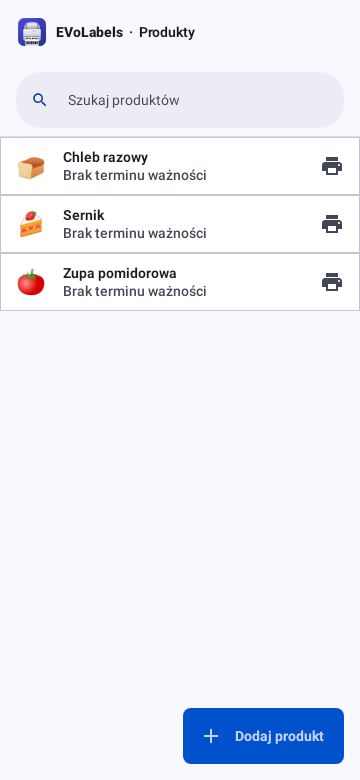
Products lists your products A-Z; search finds them by name or type. Tap one to edit it.
Adding a product

Tap Add product and type its name, then answer What is it like? by picking the kind of products it belongs with - each card shows a few of your products and their shelf life. The new product gets the same shelf life, label and captions; you then add its ingredients and anything else that is its own. The app never guesses from the name ("Biscoff" can be cookies or a spread): cards spelled like the new name come first, but you choose. With only one product type there is nothing to choose: the last step comes right after the name.
- Not sure puts it in the general type - you can change it later with Change on the product type card in the product editor.
- Something new creates a new product type, starting from the general type's rules.
The last step shows the type's Shelf life - change it here for this product only - and the date a label printed now would carry. Favorite (on by default) puts the product on the Print tab. Add saves it and takes you back, without the product form; More settings saves it and opens the form for ingredients, the label and the rest. You can always open the form later by tapping the product.
Product types are under Settings → Labels & data → Product types: what the products of a type share, their label and layout (see Product types, layouts and bindings). Inside a type: search, Add product (the name, then shelf life and favorite - the type is already chosen), Quickly add products under More (several names at once), and star products for quick printing.
Tidy up (in the product types' menu) finds products that changed their type's values the same way and suggests a better home: move them to a type that already has those values, or create a new type for them. Labels stay exactly as they were - only where the values live changes - and each step can be undone.
Editing a product
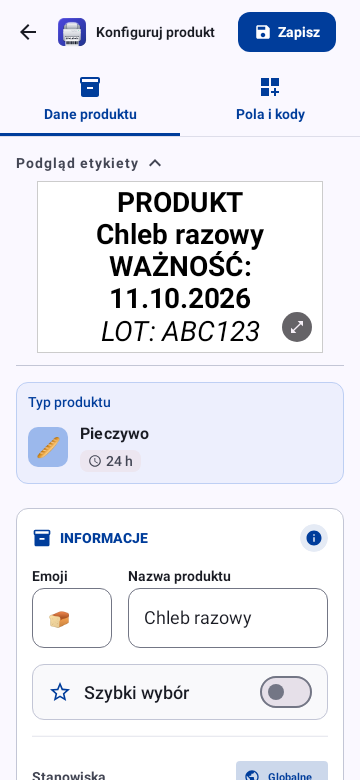
Describe the real product once - the app turns it into the right label for each market. The label preview stays at the top while you fill in the form (tap its title to fold it away, or the label to see it full size and zoom in); on a tablet or computer the product opens next to the list. Values that differ from the product type are marked in yellow, with a button that sets them back to the type's value; Edit product type (⋮ on the product type card) opens the type itself, to change a value for all its products. While the product differs from its type, the card also counts the settings that differ; Restore next to the count sets them all back to the type's values after you confirm (name, emoji and Quick select stay). Save the product to keep this.
The preview shows the label upright, the way it reads - also when the printer turns it on the paper - and compact, the same size as in Choose what prints. At the end of the form, one red line names the hidden fields your target markets require and how many markets that is; (i) lists, for each field, the markets by name.
- Name and emoji, and Fast Selection to show it among the quick-printing tiles.
- Dates on the label: prep date, expiry time (hours, days, months), lot and the manufacturer's expiry date. Thawing or cooling time (and counting the expiry from its end) is under More, which opens by itself when the product has one. The names printed before the dates ("Use by"...) come from the product type and Settings → Labels & data → Markets & languages → Label names. A product that got its own name earlier keeps printing it and shows Own name on the label: Change edits it or sets it back to the type's name.
- Ingredients and allergens: pick ingredients from the catalogue; their allergens are added automatically and you can add others. Compound ingredients list their own sub-ingredients. Choose how you enter them: by weight (grams per ingredient; the list is sorted by weight), by percentage (each ingredient's share of the recipe) or order only (copy the list from the supplier's label). Add ingredient lets you tick several at once - the search stays at the top - and adds them with Done; not in the catalogue? Type it in the search and tap Add new: the new ingredient takes that name. Under Allergens, choose whether they come from the ingredients, from a separate list too, or per ingredient, in brackets.
- Percentages (QUID): by weight, the grams only order the list and never print. Switch on Show % on label for an ingredient the pack names or pictures (strawberries in a strawberry yoghurt): the label prints its share of the recipe, e.g. "Strawberries (12%)".
- Nutrition: switch it on to enter energy, fat, protein and the rest - the label then prints a nutrition table in each market's format (most packaged food needs one); off, the product's labels have no nutrition. Values are per 100 g or 100 ml, energy in kcal and salt in grams. The app works out kJ, sodium, per-serving values and each market's rounding and table format. The editor lists the nutrients each of your target markets requires, not only the market you are looking at.
- Nutrition from the recipe: by weight, Calculate fills the nutrition per 100 g from each ingredient's amount and its nutrition (add those to your ingredients in the ingredient catalogue). Set the weight left after cooking (e.g. 80 % after baking); the values stay editable.
- Packaging and serving: net quantity, drained weight, serving size and the household measure - a number and a unit picked from the list (2 × cookie), printed in every label language with the right plural; add your own units in Settings → Labels & data → Markets & languages → Household measures. Their captions on the label ("Net weight"...) come from the product type and Settings → Labels & data → Markets & languages → Label names.
- Business operator and country of origin. Pick the country from the list (or Enter manually); the label prints its name in each label language, without a flag.
- Storage and use: storage conditions ("Keep refrigerated at 0-4 °C"), instructions for use and May contain - allergens that can get into the product by cross-contact. Storage conditions and instructions can be translated per label language; May contain prints as a separate statement after the allergens, never in the "Contains" list. On the label each starts with its prefix in every label language ("Storage conditions:", "Instructions for use:", "May contain:"); to print only your text, switch off Print the prefix for that field in the binding editor.
- Workstations: where the product is available (global or chosen workstations).
- Automatic replacement: see Journal and journal QR.
In a rigid product type, values a product changed are marked and can be reset to the type's. The product type card at the top of the editor shows the type's shelf life and what is asked when printing (LOT, prep date...). While a product differs from its type, the card says how many settings differ: Restore sets them all back to the type's after you confirm (the name, emoji and Quick select stay), and saving keeps it. Team members whose changes need approval send them as change requests (see Workstations and change approvals).
When a change touches a value other products of the same type share (for example the shelf life), saving asks: Only this product or All N products. All changes the type, so every product that takes the value from it prints the new one - it asks once more before saving.
Change (on the product type card at the top of the editor, or a tap on the type) moves a saved product to another type, for example after Not sure. The confirmation shows what changes: the label layout and the values the product took from its old type now come from the new type; the product's own values stay. Labels already printed, the journal and the print history don't change, and Undo appears right afterwards. You need the right to edit products, and the product has to stay within your workstations.
Several labels: when the product type prints a set of labels (see Labels on the pack in Product types, layouts and bindings), the label preview shows them one at a time - switch with the tabs above it, the arrows, a swipe or the ←/→ keys, also in the full-size preview. Printing always sends all of them.
Changing many products at once
Long-press a product to start selecting - in the Products tab or in a product type - then Edit, Duplicate or Delete. With a mouse, right-click or Ctrl+click (⌘+click on a Mac) adds a product, Shift+click every product up to the one you click, Ctrl+A all shown. Editing shows a preview first: how many products change, how many already have the value and which are skipped and why (for example outside your workstations). Deleting can be undone right afterwards. Move to type (in the Products tab) moves the selected products to another type by the same rules and shows how many move; it can be undone too.
Ingredient catalogue
Settings → Labels & data → Markets & languages → Ingredient Catalog holds the built-in ingredients and your own, with their allergens and translations. Your own ingredients are available in every product. Each ingredient has a diet: Vegan, Vegetarian, Not vegetarian or Not set - new ones start as not set, in the category Other. A product counts as vegetarian only when all its ingredients are; with one not set, mark the product vegetarian yourself in Recipe facts (labels for India show the veg or non-veg mark).
Translations
A label prints the product and ingredient names in each of its label languages, so they need translations:
- Product name translations: the product editor asks for the name in every label language when one is missing. Suggestions are machine-translated - check them before printing.
- Ingredient names: built-in ingredients print in every language the catalogue knows, even when they were added before a translation existed; your own names win. Names still missing print as typed - the label preview and the language picker (required languages included) show how many items are not translated into each label language. The dialog that asks for missing names lists them all on one page. Names you enter there for your own ingredient also go to the ingredient catalogue (if you may edit it), so the next product that uses it has them.
- Translation Assistant (paid plans) suggests translations for names and ingredients with AI, up to 100 per day; review them before saving.
- Label names (Settings → Labels & data → Markets & languages → Label names) are the captions printed before values, for example "Best before" or "Thawed on". Add your own wording and its translations; the list shows which ones still miss a language.
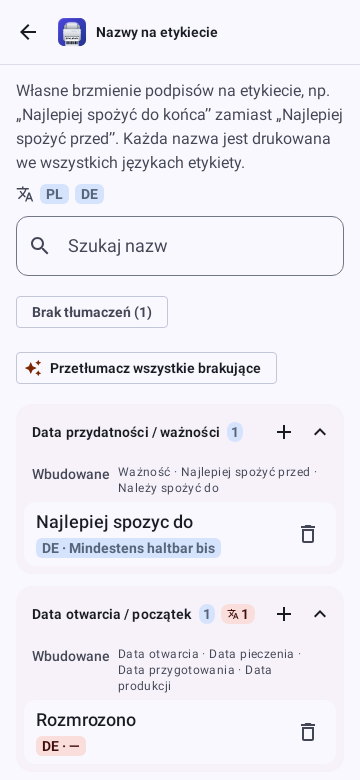
Machine translations can be wrong. You are responsible for the label: check its content, translations and allergens before you use it.
Suggesting a better translation
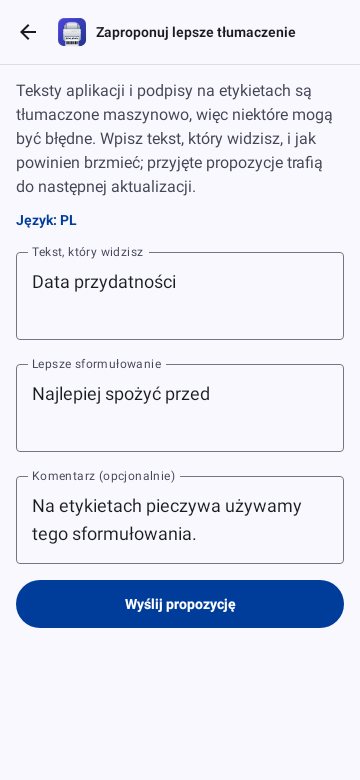
Found a wrong or clumsy text in the app or a caption on a label? Settings → Suggest a better translation: type the text you saw, the better wording and, if you like, a comment. We review the suggestions and the accepted ones ship with the next update.